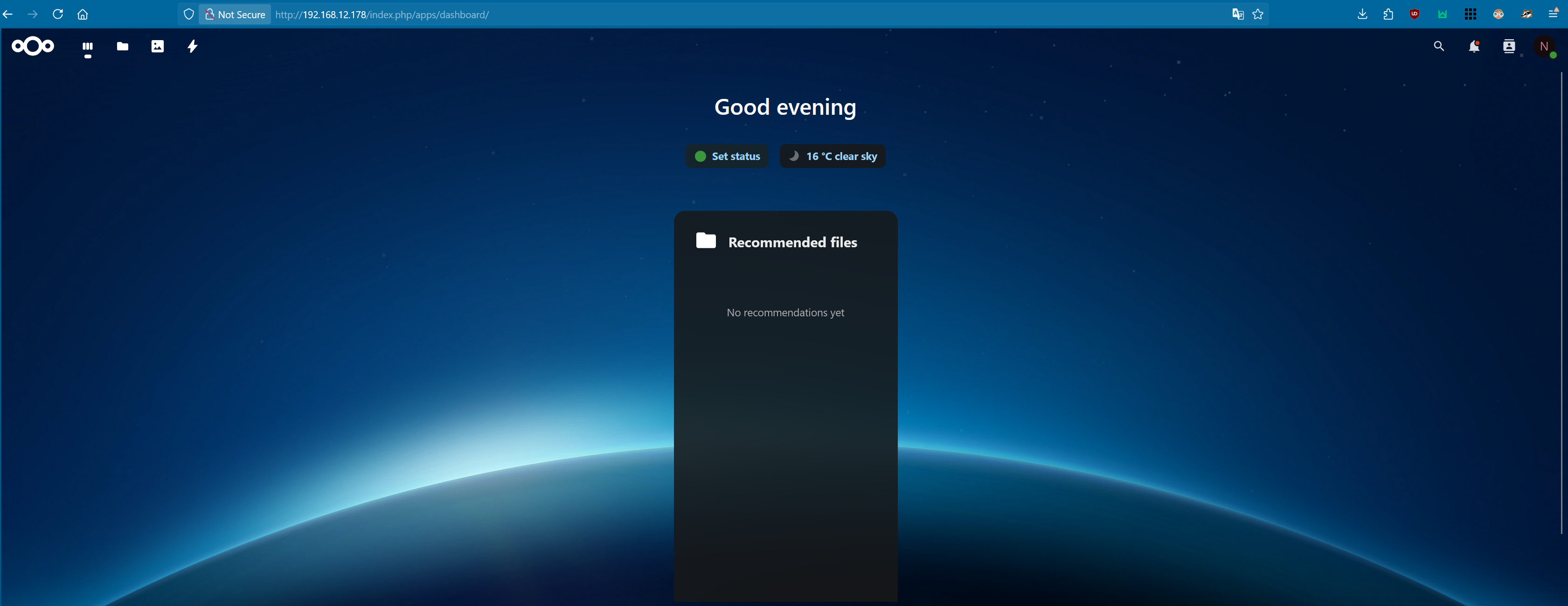
Setting Up Nextcloud in My Homelab
Note: This instance is hosted on my Dell Optiplex running Proxmox, not my main Dell Inspiron laptop.
I wanted to run my own personal cloud service in my homelab, so I set up Nextcloud inside a Proxmox VM. The goal was to get a reliable internal instance first, then later harden it and potentially make it accessible outside my network.
VM Basics
- Host: Proxmox VM
- OS: Ubuntu 24.04.3 LTS
- Specs: 2 vCPU, 4 GB RAM, 40 GB disk (expandable later)
Installation Process
I followed the official Nextcloud installation and built the environment with Apache, PHP, and MariaDB.
System updates and prerequisites
Brought the system up to date and installed core packages.
Apache installation
Installed and configured Apache as the web server.
PHP and required extensions
Installed PHP with modules commonly required for Nextcloud (gd, curl, mbstring, xml, zip, etc.).
MariaDB installation and database setup
Installed MariaDB, created a dedicated database and user for Nextcloud.
Nextcloud installation
Downloaded and extracted the Nextcloud package, placed it in the Apache web root, and ran through the web-based installer.
Data directory (optional)
Nextcloud allows storing data on separate storage; for now, I kept it local to the VM.
Enabling Services
Once the installation and configuration were complete, I enabled the core services so they start automatically (service names may vary slightly by distro):
# Apache
sudo systemctl enable --now apache2

# MariaDB
sudo systemctl enable --now mariadb

# Optional: PHP-FPM if used with Apache proxy_fcgi or with Nginx
sudo systemctl enable --now php8.3-fpm